Usually you'll be prompted automatically. If not, you can start it yourself.
If prompted: select the Verify prompt when it appears — on the home page, in your profile, or in a chat.
To start it manually:
- Open your profile settings (profile icon, top right on web; You, bottom right on the app)
- Scroll to the General section
- Select Verify
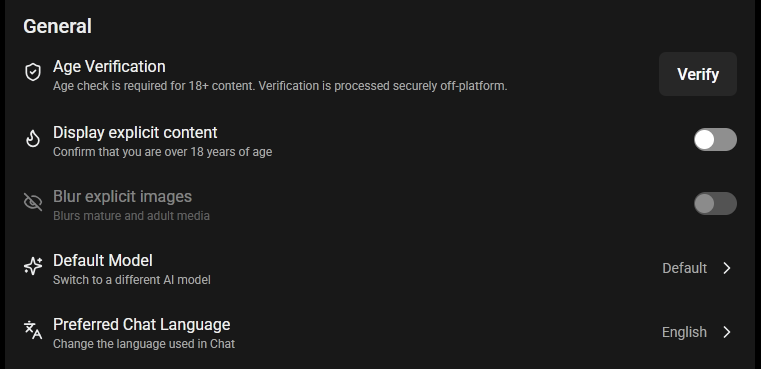
If the Verify button isn't there, verification isn't required for your region. If it's greyed out, you're already verified — this happens automatically if you've recently bought a subscription with a credit card.
Then:
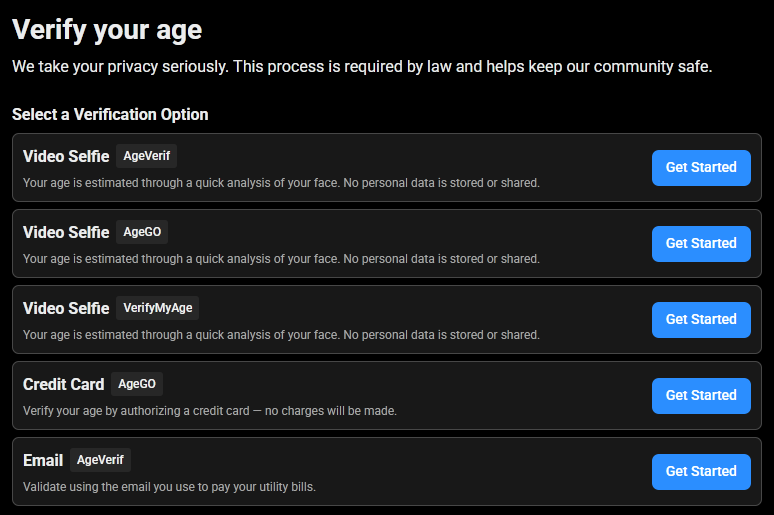
- Choose one of the listed verification providers
- Follow their on-screen instructions
- Select the link that returns you to SpicyChat when you're done — usually labelled Go to SpicyChat or Return to Website.
With some providers, they may ask you to save your results to create a passkey. This is entirely optional. The important part is where it asks you to share your result to Spicychat, or return to Spicychat, since this is where the provider will give us the “Yes” signal.
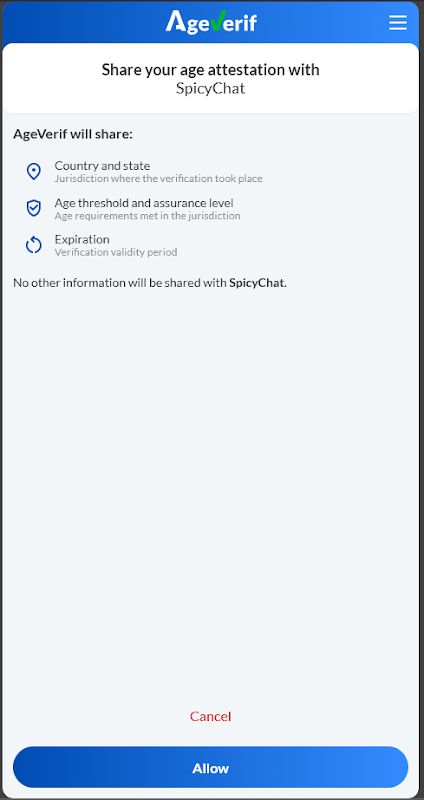
That last step matters. If you close the tab before returning, the result may not register against your account and you'll be asked again.
Before you start
- Turn off VPNs and proxies — the most common cause of failure
- Don't use Incognito or Private browsing — the process needs session cookies
- Turn off ad blockers and cookie blockers for the same reason
- Use an up-to-date Chrome browser if you can — it's the most reliable for this flow
- If you use iCloud Private Relay, Brave or DuckDuckGo, disable the privacy relay first
Was this article helpful?
That’s Great!
Thank you for your feedback
Sorry! We couldn't be helpful
Thank you for your feedback
Feedback sent
We appreciate your effort and will try to fix the article