First, confirm the website works. Go to spicychat.ai in a browser and sign in. If that works, the problem is specific to the app.
Update the app. Sign-in problems are very often caused by an outdated version — we ship updates roughly weekly. Download the current build from spicychat.ai/apps/android.
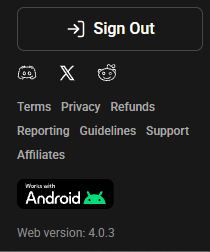
You can see the current version number on the website, at the bottom of the side menu on the right. The Android app should match it.
Back up any drafts first. Character drafts are stored locally in the app, so reinstalling loses them. See article 6.8.
Clear the app’s data:
- Press and hold the SpicyChat icon
- Tap the (i) info icon
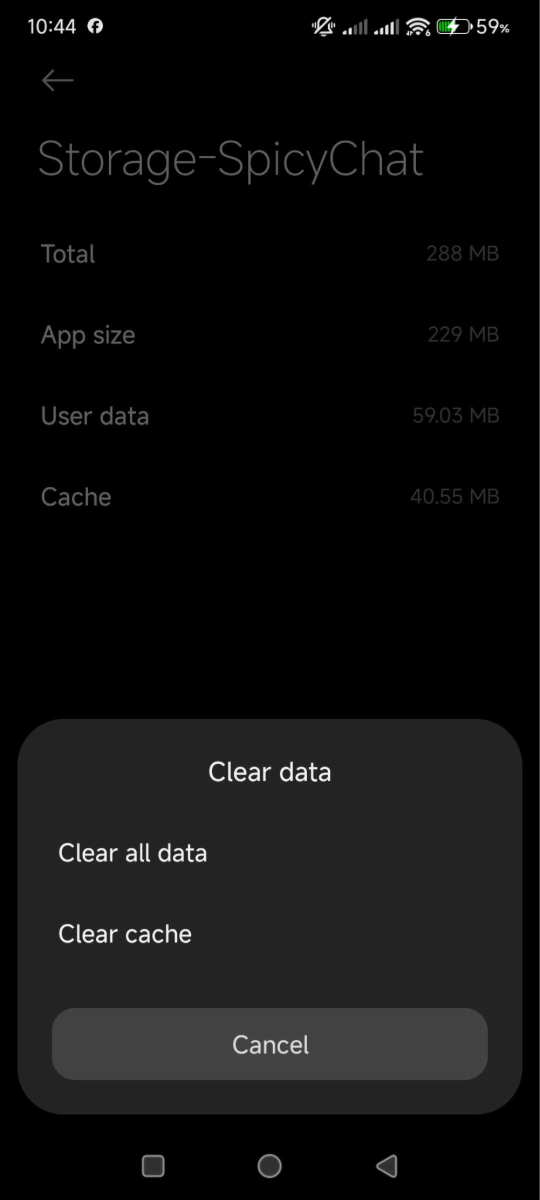
- Select Storage
- Tap Clear Data and Clear Cache
- Reopen and sign in
Set Chrome or Firefox as your default browser. Sign-in opens briefly in your default browser to complete authentication, and some browsers break that step. If it still fails, temporarily disable other browsers so nothing else can intercept it.
If the code page looks wrong, tap the three dots at the top right of the browser and choose Desktop site.
On iOS, use the website — see article 8.13.
Was this article helpful?
That’s Great!
Thank you for your feedback
Sorry! We couldn't be helpful
Thank you for your feedback
Feedback sent
We appreciate your effort and will try to fix the article